A fresh account
New-user signup test.
Five things to fix.
Sign up for your own product as someone who has never used it. Write down the top five things to fix.
The short answer
A fresh browser. A new email. Every pause written down. One line for each screen. Five fixes, worst first. Then a sketch of the first fix.
Walk your signup
How to run it
1A fresh browser
Open a private window, or a browser profile that has never signed in to this product. No saved password. No extension filling the form.
2A new email
Use an address this product has never seen. If it already knows you, you are not a new user.
3Note every hesitation
Where you pause, reread a label, or nearly leave. Write the words you stopped on, beside that screen.
4What you saw at each step
One line per screen. The heading. The fields. The button. Anything that stopped you.
5The top five fixes
Rank them, worst first. Each one is a change you could ship.
6Sketch one fix
The first one, before you open the code. The screen as it is, and the screen with that one change.
What we saw on swiftqms.com
On 25 Oct 2026, at 15:39 GMT, Impatient walked swiftqms.com. Nothing was submitted. One screen.
- SwiftQMS Headline “SwiftQMS.” Fields: Your name, Organisation name, Work email, Password. Buttons: Create account, Sign in. No price. No trust marks. Filled Your name, Organisation name, Work email, Password with test values. Didn't press Create account.
The saved walk keeps a screenshot of the register screen. That is step 1.
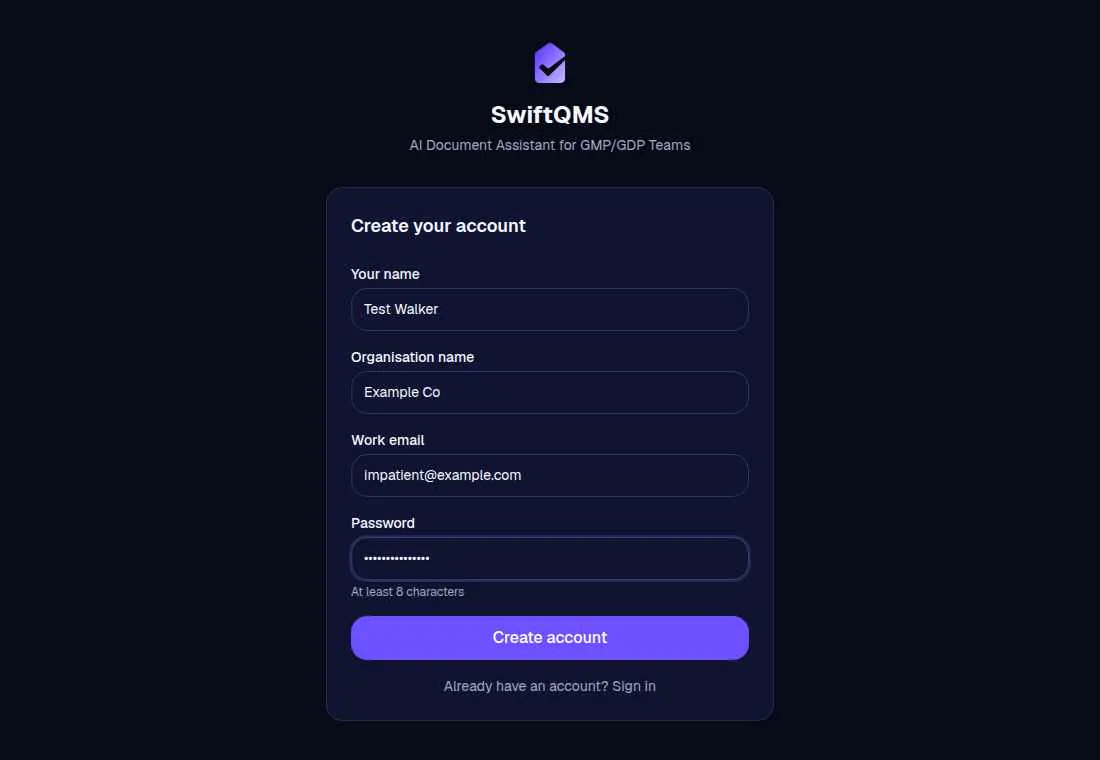
The report kept three fixes, worst first.
- Organisation name before the product. The line: “Organisation name is above the email field, so I closed the tab.” The change: “Ask for an email before organisation name, and leave organisation name until they're in the product.”
- No show-password on “Password”. The line: “The “Password” field is here, and nothing on the screen shows the password.” The change: “Add a show-password control on the “Password” field.”
- “Your name”, “Organisation name”, “Work email”, and “Password” don't say they're required. The line: “Your name”, “Organisation name”, “Work email”, and “Password” are required, and the form never says so. The change: “Mark “Your name”, “Organisation name”, “Work email”, and “Password” as required before the first try.”
The first of those is the mocked-up fix. The before side is the register screenshot. The after side is a paper mock of “Ask for an email before organisation name, and leave organisation name until they're in the product.” It keeps Your name, Work email, Password, and the button stays Create account. The fields and the required marks are on signup fields. Asking for the password twice is on confirm password. A button that stays disabled is on signup button. Password rules before submit are on password rules. Asking for a work email is on work email. A provider button above the email is on social login.
What the walk returns
Stumblet runs this as one free persona. Impatient. You get a step log, a screenshot on each step when the shot succeeds, up to five fixes, and one mocked-up fix. The other personas stay locked.
1One walk, a new browser
Each run opens a new browser, with no saved login from the last walk. The window is 1100 by 760. It follows the signup for six screens at most. Seeing the same address, heading, and fields again stops it sooner.
It does not open a new inbox. The address it types is impatient@example.com, unless you tick that you own the site and give a test email. Nothing is submitted unless both of those are set.
2A step log, with screenshots
Each step stores the screen name, what was on it, what Impatient did, and a one-line reaction. The reaction is a sentence about that screen. It is not a timer of how long someone paused. When you run the test yourself, the hesitations are yours to note.
The walk takes a JPEG of the screen it is on. If the shot fails, the step stays in the log without an image. The swiftqms.com example above keeps the register screen.
3Up to five fixes
Findings are ranked, worst first. The report keeps five at most, and a short form often has fewer. If nothing specific showed up, the line is “Clean signup. Nothing on these screens is specific enough to fix.” A card field, a captcha, or an email check stops the walk and names that screen. It does not type a card. A bot check stops the walk before the signup.
4One mocked-up fix
The top issue, from the step where it showed up. The before side is that step's screenshot, when the shot succeeded. The after side is a paper mock of the one change. A finding that sits on a handoff step is not the one drawn. There is no mockup when the page did not load, when a bot check stopped the walk, when the URL is not a signup, or when the signup is clean.
Questions
How do I sign up for my own product as a new user?
Open a browser with no saved login. Use an email the product has never seen. Go through the signup. Note every place you hesitate. Write what each screen showed. Rank the top five fixes, and sketch the first one.
What does Stumblet send back from that test?
One Impatient walk. A step log, with a screenshot on each step when the shot succeeds. Up to five fixes, ranked. One mocked-up fix for the top issue. The other personas stay locked, and this walk does not run them.
Does the walk create an account?
Only if you tick that you own the site and give a test email. Otherwise it fills test values, types impatient@example.com, and leaves the account button alone. It never types a card. A captcha or an email check stops the walk.
Does the walk note every hesitation?
The walk writes a one-line reaction on each step, from what is on the screen. When you run the test by hand, you note the hesitations yourself. The walk does not time a pause.
What the first screen should say is on signup page copy. Which fields to cut is on signup fields. Asking for the password twice is on confirm password. A button that stays disabled is on signup button. Showing the rules before typing is on password rules. Asking for a work email is on work email. A provider button above the email is on social login. The short list is the onboarding checklist. The signup prompt is this job in one line, and the AI onboarding audit is the walk.
The walk is free. It starts on the home page.
Walk your signup