Before the product
Signup fields.
What to cut first.
Email, a password if you ask for one, and a name. The first extra field is the one Stumblet names.
The short answer
Cut company, phone, display name, and the rest of that list until the person is in the product. Stumblet reports the first extra field only.
Walk your signup
What we saw on swiftqms.com
On 25 Oct 2026, at 15:39 GMT, Impatient walked swiftqms.com. Nothing was submitted. The register screen notes say: Headline “SwiftQMS.” Fields: Your name, Organisation name, Work email, Password. Buttons: Create account, Sign in. No price. No trust marks.
The finding was “Organisation name before the product”. The line: “Organisation name is above the email field, so I closed the tab.” The change: “Ask for an email before organisation name, and leave organisation name until they're in the product.” The mockup keeps Your name, Work email, Password, and the button stays Create account.
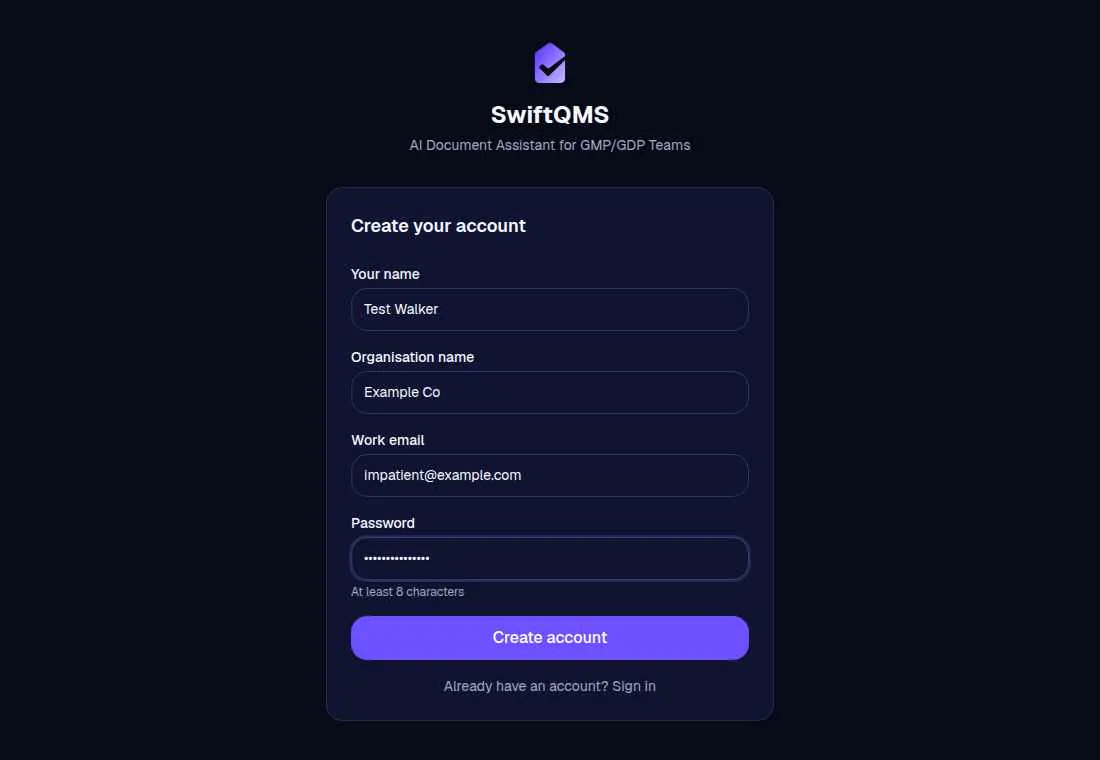
The required-field finding: “Your name”, “Organisation name”, “Work email”, and “Password” don't say they're required. The line: “Your name”, “Organisation name”, “Work email”, and “Password” are required, and the form never says so. The fix saved on that walk: “Mark “Your name”, “Organisation name”, “Work email”, and “Password” as required before the first try.”
What Stumblet flags
1The first extra field
The title is the label plus “before the product”, as in “Company before the product” or “Confirm Password before the product.” When the email field is above it, the fix is “Leave company until they're in the product.” When the field is required and sits under the email, the line is “I had the email field, then it wanted company, so I closed the tab.” When it is not required and sits under the email, or when the page has no email field, the line is “Company is on the form before I can see the product.” Above the email, a required field says “Company is above the email field, so I closed the tab.” An optional one says “Company is above the email field.” If the extra field sits above the email, the fix is “Ask for an email before company, and leave company until they're in the product.” With no email field on the page, the fix is “Ask for an email first, and leave company until they're in the product.” A required extra field ranks higher than one that is not required.
These labels are extra, required or not: company, organisation, team size, company size, employees, role, job title, phone, mobile number, use case, industry, workspace, headcount, how did you hear, website, username, user name, display name, confirm password, repeat password, and re-enter password. Organisation also matches the spelling with a z.
Any other required field with a label is extra too. Email is not. A name is not: full name, first name, last name, name, or your name. A normal password is not. A card field is not. A honeypot such as “leave this field blank” is not. Checkboxes, radios, and hidden inputs are not. Only the first extra field is reported.
2Fields Impatient leaves empty
This is how the walk fills the form, not a separate finding name. Email, password, and name are still filled. Left empty: a field whose label, placeholder, or hint says optional; an optional free-text box; an optional box for comments, notes, feedback, tell us, describe your, how did you hear, or additional info; and an unmarked field when another field on the form is marked required.
3Fields that don't say they're required
On a form that also has an optional field, or on a form with more than three fillable fields, each required field has to say so. A short form of three or fewer fields, all of them required, is left alone. Email and password on that short form are treated as obviously required.
The title names the fields, up to four of them. On this shape it is “Email”, “Password”, and “Confirm Password” don't say they're required. The fix names them too: “Mark “Email”, “Password”, and “Confirm Password” as required before the first try.” The line is “Email”, “Password”, and “Confirm Password” are required, and the form never says so. The optional field is not named in this finding. The swiftqms.com walk saved a fix that names the fields on that form: “Mark “Your name”, “Organisation name”, “Work email”, and “Password” as required before the first try.”.
4Terms box starts unticked
A required tick box about terms, conditions, privacy, agree, accept, or consent, that starts empty. The title is “Terms box starts unticked.” The fix is “Don't make a required terms box the thing that blocks the button.” The line is “The terms box is required, and it starts empty.” A box that starts ticked is a different finding. For “I accept the terms”, the title is “I accept the terms starts ticked.” The fix is “Leave “I accept the terms” unticked.” The line is “I accept the terms” is already ticked.
5Step 3 of 5 before the product
The walker reads “Step N of M” and “Step N/M”, when the total is from 2 to 12. A total of four or more is “Step 3 of 5 before the product.” The fix is “Cut this to one screen, or say what this step is for.” With screens still to go, the line is “This says Step 3 of 5, and I'm not filling 2 more screens.” On the last of those screens, the line is “This says Step 4 of 4, and I'm still not in the product.”
A total of two or three, on a form or under a heading, is the smaller version. The title is “Step 1/2 before the product.” The fix is “Say what this step is for, or ask for the email on one screen.” The line is “This says Step 1/2, and the product is still another step away.” On the last of those steps: “This says Step 2 of 2, so this signup is more than one screen.”
63 screens before the form
This one is counted from the steps, after the walk. Two or more named screens before the first email or password field. One screen of marketing is not this. The title uses the count, as in “3 screens before the form.” The fix is “Ask for the email on the first screen.” The line names the screens the walker passed, up to three of them.
Questions
Which fields should a signup form keep?
Email, a password if you ask for one, and a name. Stumblet reports the first extra field and leaves the rest of that list for after they are in the product.
Is an optional display name fine?
Display name is on the extra-field list even when the field says optional. Impatient leaves an optional field empty. If it is the first extra field, the finding is still “Display name before the product.”
What about a required terms tick box?
A required terms box that starts empty is “Terms box starts unticked.” The fix is “Don't make a required terms box the thing that blocks the button.” A box that already starts ticked is a different finding. For a box labelled “I accept the terms”, the title is “I accept the terms starts ticked.”
What does Step 3 of 5 mean to the walk?
A counter of four or more steps is “Step 3 of 5 before the product.” The fix is “Cut this to one screen, or say what this step is for.” Two or three steps use “Say what this step is for, or ask for the email on one screen.”
Asking for the password twice, including the rules and the show-password control, is on confirm password. A button that stays disabled after the fields are filled is on signup button. Showing the password rules before submit is on password rules. Asking for a work email is on work email. A provider button above the email is on social login. What the first screen should say is on signup page copy. The way to run the signup yourself is the new-user signup test. The short list is the onboarding checklist. The AI onboarding audit opens the URL, and the signup prompt is the job it runs.
The walk is free. It starts on the home page.
Walk your signup