Still disabled
Signup button.
Why it stays greyed out.
Say which field is blocking. Show the password rules before typing. Don't leave the button greyed out with no reason.
The short answer
Enable the button once the fields are filled, or say why it stays disabled. Name the field or the rule that is blocking it. Put the password rules beside the field before the first try.
Walk your signup
What we saw on swiftqms.com
On 25 Oct 2026, at 15:39 GMT, Impatient walked swiftqms.com. Nothing was submitted. One screen, and the form was on it. The notes say: Headline “SwiftQMS.” Fields: Your name, Organisation name, Work email, Password. Buttons: Create account, Sign in. No price. No trust marks. The step says “Filled Your name, Organisation name, Work email, Password with test values. Didn't press Create account.”
The submit button was “Create account”. The password rules saved on that step were “At least 8 characters”. Password rules were not one of the findings from this walk. The step says it didn't press Create account. That is the walk leaving the account button alone. A button that stayed disabled would be a different line: the button's words, then “stayed disabled.”
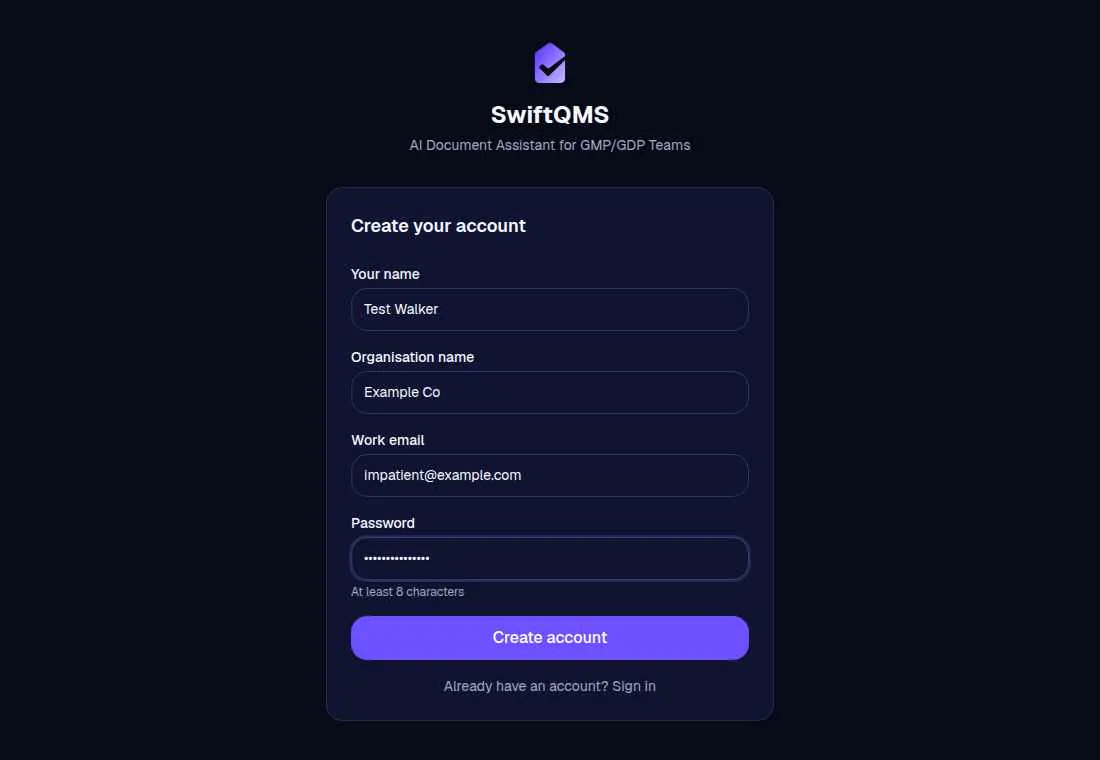
The walk saved these findings:
- Organisation name before the product
- No show-password on “Password”
- “Your name”, “Organisation name”, “Work email”, and “Password” don't say they're required
A disabled button and an inline field error are not in that list.
What Stumblet flags
1The button stayed disabled
After the fields are filled, the walk reads until the button and the errors stay still, so a validation message that lands a moment later is the one that gets quoted. A disabled button with no visible reason is a finding. A visible error is quoted instead, in the next check. A length the walk itself missed is not the page's fault.
The primary button is the submit control. A disabled submit is still that button. If one submit is enabled, that enabled control is the button, and a second disabled submit is not this finding. With no submit, a button called Continue, Next, or Get started is the button, even when it is disabled. A disabled control that is not a submit, and not one of those, is not the primary button. A show-password control is not it. Neither is a social login whose label also says continue, sign, log, or with. Sign in, Log in, Back, Skip, and Help are not it.
A button counts as disabled when the control is disabled, or when aria-disabled is true. A greyed-out control counts too, when the opacity is above zero and at most 0.55, and it also ignores the pointer or uses a not-allowed cursor. A class of disabled, is-disabled, or btn-disabled counts when the control is faded in that way, or when it ignores the pointer or uses a not-allowed cursor.
Two waits happen before that button is blamed. A captcha that is not the invisible kind can appear only after the email is valid. If that widget is pending, the walk reads again for up to a second and a half. If a visible human check shows up, the walk stops on “Human check before signup” and does not call the button disabled. The fix on that stop is “Let people start signup before the human check.” The line is “A human check is on the page, so I left.”
If a captcha widget is already in the page, including a hidden one, and the button is still disabled, the walk keeps reading for up to six seconds for the button to enable. No widget means no extra wait. If the button enables, there is no finding. If it never enables, the finding is “A human check holds the button.” The fix is “Nothing to change. A human check is holding the button.” The line is “A human check holds” the button's words. That line does not say the page doesn't say why.
With no captcha widget and no visible error, the title is the button's words, then “stayed disabled”. The fix is “Enable” those words “once the fields are filled, or say why it stays disabled.” The line is those words, “stayed disabled, and the page doesn't say why.” Say why. Name the field, or the rule, that is blocking the button. Don't leave it greyed out with no reason on the page.
A required tick box about terms, conditions, privacy, agree, accept, or consent, that starts empty, explains a disabled button. Stumblet does not add this finding on top of that box. The terms finding is on signup fields. A visible field error is still quoted when one is on the page.
If the page already stated a minimum length, in the page text, on the password hint, as minlength, or as a length-only pattern, and the password the walk typed is shorter than that, Stumblet does not flag the silent button. The same is true when the error itself asks for a length the typed password misses, with “at least”, “minimum”, or “or more” characters. That miss is on the walk, not the page.
2A visible field error
The walk quotes the first visible inline error after the fields are filled. The line has to be the error itself, not a block that also holds a field, a button, or a link. A role of alert is quoted on its own. Live text, or red text, is quoted when the words look like an error: please, invalid, not valid, too short, too weak, too long, too common, stronger, must be, must contain, doesn't match, don't match, already taken, already used, already registered, not allowed, cannot, can't, is required, too easy, or weak password. A field with aria-invalid uses the text it describes, when that text is painted. Transparent text does not count. The text is ignored under six characters or over 180. Up to four errors are read. The finding uses the first one.
The title quotes that error, and cuts it once the message is long. If the error is about the password, or it says stronger, too weak, or weak password, and it also says stronger, too weak, not strong enough, or weak password, and it does not state a rule, the fix is “Say what a stronger password is, beside the field.” A rule here is a length, uppercase, lowercase, a number, a special character, or “password must”. When the button stayed disabled, the line is “This says” the error, the button's words “stayed disabled, and it never says what stronger means.” When the button did not stay disabled, the line is “This says” the error, “and it never says what stronger means.”
Any other visible error uses “Show how to fix” the error “beside the field.” When the button stayed disabled, the line is “This says” the error, “and” the button's words “stayed disabled.” When the button is enabled, the line is “This says” the error. Show how to fix it beside the field. Don't make the person guess which field failed.
When the error is about the password, or it says stronger, too weak, or weak password, the separate finding “Password rules aren't beside the field” is dropped. The page already said something about the password, so that line would repeat it. An error that is not about the password leaves the rules finding in place.
3Password rules before the first try
This check runs on the page before the fill. If a password field is on the page and the rules are not, the title is “Password rules aren't beside the field.” The fix is “Show the password rules beside the field before the first try.” The line is “The password field is here, and the rules aren't.”
The page text counts when it states a length, uppercase, lowercase, a number, a special character, or “password must”. A checklist on the password field itself also counts, when the hint is at least two short chips such as “8+” and “Lowercase”. A hint on the confirm field does not count. The rest of that check, including a missing show-password control, is on confirm password.
Show the rules before someone types. An error that appears only after the first try is the field error above. If that error is about the password, the generic rules line is dropped and the error is what gets quoted. If the error never states the rule, say what a stronger password is, beside the field, before the next try. Matching those rules to the server, and a live checklist, is on password rules.
Questions
Why does a signup button stay disabled after the fields are filled?
Stumblet quotes the primary button when it is still disabled after the fields are filled and the page never says why. The title is the button's words, then stayed disabled. The fix is to enable that button once the fields are filled, or say why it stays disabled. Name the field or the rule that is blocking it. A required terms box that starts empty is a different finding.
What if the password error only appears after typing?
A visible inline error is quoted. If the error is about the password and it says stronger, too weak, not strong enough, or weak password, without stating a rule, the line says it never says what stronger means. The fix is “Say what a stronger password is, beside the field.” Show the password rules beside the field before the first try. If the error already states the rule, the fix is to show how to fix that line beside the field.
Does a hidden captcha count as a disabled button?
No. If a captcha widget is on the page and the button is still disabled, Stumblet keeps reading for up to six seconds. If the button enables, there is no finding. If it never enables, the finding is “A human check holds the button.” The fix is “Nothing to change. A human check is holding the button.” A visible human check already on the page stops the walk as “Human check before signup” and does not blame the button.
Asking for the password twice, including the rules and the show-password control, is on confirm password. Which fields to cut, including the terms box that can hold the button, is on signup fields. What the first screen should say, including a button that only says Continue, is on signup page copy. Showing the rules before submit is on password rules. Asking for a work email is on work email. A provider button above the email is on social login. Running it yourself, and keeping the top five, is the new-user signup test. The short list is the onboarding checklist. The AI onboarding audit is the walk, and the signup prompt is the job it runs.
The walk is free. It starts on the home page.
Walk your signup